









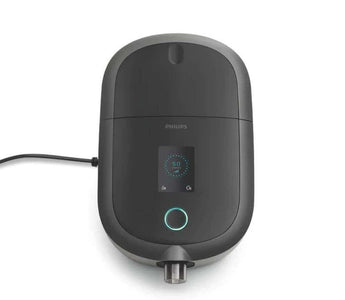

An easy way to tell if your sleep apnea therapy is working is to look at your Apnea-Hypopnea Index or AHI. CPAP machine users should aim for an average AHI of less than 5 events per hour.
If your AHI occasionally increases over 5, that's not a problem, since no one has the same quality of sleep every night.
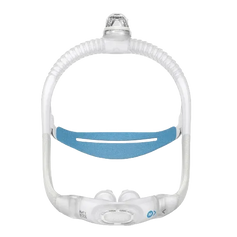
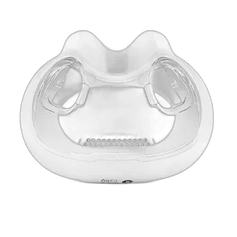
However, a consistently high AHI over one to two weeks is a sign that your CPAP therapy needs to be optimized. Luckily, most problems can be solved by fixing your CPAP mask leak and using the right CPAP mask size.
Click on each CPAP machine to learn how you can view AHI on the device:
- Philips Respironics DreamStation Auto CPAP/CPAP Pro
- Philips Respironics DreamStation 2 Auto CPAP Advanced
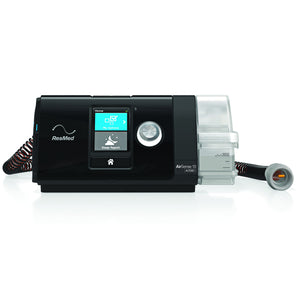
- ResMed AirSense 10 AutoSet/Elite/CPAP
- ResMed AirSense 11 AutoSet/Elite/CPAP
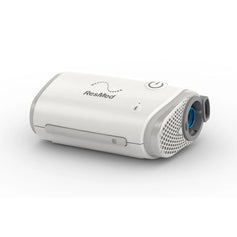
- ResMed AirMini Auto Travel CPAP
- Transcend Micro Auto Travel CPAP
- Breas Z2 Auto Travel CPAP
- APEX XT Auto Travel CPAP
What Does AHI Mean?
Let's start by looking at CPAP AHI meaning.
AHI or Apnea Hypopnea Index CPAP is a good indicator of the current condition of your sleep apnea. Also known as CPAP events per hour, it refers to the total number of apneas and hypopneas that happen every hour of sleep.
To calculate the AHI score on CPAP machine, the device’s built-in algorithm detects changes in airflow to determine your apneas and hypopneas. Then, it divides the number of apnea and hypopnea events by the total hours of sleep.
Your AHI is a good indicator of how well you're responding to sleep apnea therapy, so it's a good idea to be familiar with your AHI reading on CPAP and know what causes AHI to increase and how you can lower your AHI.
How to View AHI on DreamStation Auto CPAP/CPAP Pro
Before you can see your AHI CPAP score on the DreamStation, you’ll need to enable this option. Please note that the AHI feature is only available on the DreamStation Auto CPAP and CPAP Pro.
How to Enable AHI on the DreamStation
1. Enter the clinical menu:
- Press the “Ramp” button (yellow triangle symbol) and push the dial simultaneously.
- Hold both buttons for 5 seconds.
2. Once you see “Therapy” on the screen, you are in the clinical menu.
3. Turn the dial clockwise to cycle from “Therapy” to “Device.” Push the dial to select “Device.”
4. In the “Device” menu, you will see “AHI.” Push the dial to select “AHI” and turn the dial to set AHI from Off to On. Push down on the dial again to confirm your selection.
5. Exit to the home screen:
- Once you’ve set “AHI” to On, turn the dial counterclockwise to exit out of “Device.”
- Keep turning the dial counterclockwise until you see “Patient Mode” and push to select. You are now back at the home screen.
Where Can I Find My AHI?
You can view your AHI under the “My Info” tab:
1. Enter “My Info” by pushing the dial. You can turn the dial to cycle through a series of submenus.
2. Turn the dial clockwise until you see “AHI.” You’ll see the AHI from your most recent session as well as the average AHI from the past 7 and 30 days.
How to View AHI on DreamStation 2
In order to see your AHI CPAP score on the DreamStation 2, you'll need to turn on “Patient Data'' in the clinical menu.
How Do I Turn On “Patient Data”?
1. Enter the clinical menu:
- Press and hold the Therapy button until the ring around the button flashes.
- Keep holding the button and swipe down on the screen.
2. Once you're in the clinical menu, you'll see three submenu headings at the bottom of the screen: Therapy, Data, and Device. When you enter the clinical menu, you will be in the “Therapy” sub-menu by default.
3. There are four dots on the right-hand side of your screen which correspond to four submenus under “Therapy.” Swipe down on the screen to access the third submenu: “Patient Access.”
4. Tap on “Patient Data” to turn it on or off.
5. Tap “Exit” on the top right-hand corner to leave the clinical menu.
How to See AHI From Previous Nights
After you turn off the machine, you'll see “Last Session” pop up on the user interface. By default the DreamStation 2 displays AHI from your most recent therapy session (only if "Patient Data" is turned on).
1. Tap “Settings” at the bottom of the “Last Session” screen.
2. Scroll down to “View Reports” and tap on “View Reports” to see your past 1, 7, 30, 90, 180, or 365 days of therapy data.
3. Tap on the desired time period to see your data report.
4. Scroll to the next page in the report to see your average AHI for the reporting period.
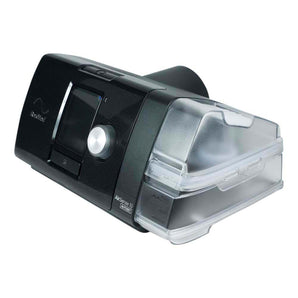
How to View AHI on ResMed AirSense 10 AutoSet/Elite/CPAP
To view your AHI CPAP data (shown as events/hr under “Sleep Report”) on the AirSense 10, you need to first enable “Essentials Plus”.

How to Enable “Essentials Plus”
1. Enter Clinical Settings by pressing and holding the “Home” button and the dial simultaneously for 5 seconds. You will see “Settings” appear on the screen.
2. Press the dial button to enter “Settings.” Turn the dial clockwise to scroll down the list of settings until you reach the “Options” submenu. Under “Options,” you will see “Essentials On.”
3. Press the dial to select “Essentials On.” This will take you to another submenu with the options “On” and “Plus.”
4. Turn the dial to highlight “Plus” and press to select. You have now enabled “Essentials Plus.”
5. Turn the dial counter-clockwise to scroll all the way back up to “Home” and select “Home” to exit “Settings.”
Where Can I Find My AHI?
1. From the home screen, turn the dial clockwise to “Sleep Report” and push to select.
2. Your AHI is displayed as “Events per hour” under “Usage hours.” This is the average AHI over your selected time period.
3. To see what your set time period is, scroll down to the “More Info” submenu. Under “More Info” there is “Period,” and to the right is the current set time period.
How to View AHI on ResMed AirSense 11 AutoSet/Elite/CPAP
You can view your AHI index CPAP score under “Sleep View” if “Patient View” is set to advanced on your AirSense 11 sleep apnea machine.

How to Set “Patient View” to Advanced
1. Enter Clinical Settings by holding two fingers anywhere on the home screen for 3 seconds. You will see the home screen change to “Clinical Home.”
2. Tap “Settings” to enter the menu. Scroll down until you see “Options.” Under the “Options” submenu, you will find “Patient View.”
3. Tap on “Patient View” to set it to “Advanced” if it is set as “Simple.”
4. Tap the home icon on the upper left corner to return to the clinical home screen.
5. Select “Exit” to return to the regular home screen.
Where Can I Find My AHI?
1. Select “Sleep View” from the home screen.
2. Under “Sleep View” you'll see your usage, events (AHI), and mask seal from the most recent session. You can view a detailed breakdown of your sleep data if you scroll down.
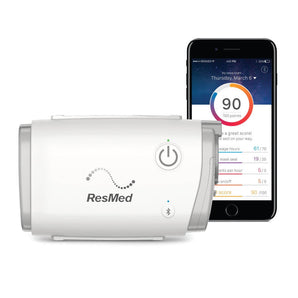
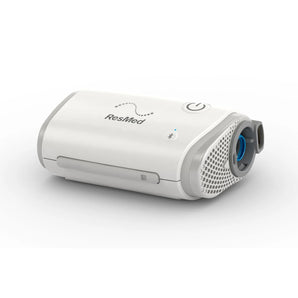
How to View AHI on ResMed AirMini
The only way to see your AHI on the AirMini is via the AirMini app for iOS and Android. Please follow the instructions in the app to connect your AirMini to your smartphone.
Once connected, you’ll be able to see data, including your CPAP events, from your most recent session on the app’s dashboard.

Therapy data is broken down into:
- Usage hours
- Mask seal
- Events per hour (AHI)
- Mask on/off events
- Pressure
You can access therapy data for a specific date in the past 30 days by selecting the date above your myAir score.
How to View AHI on Transcend Micro

Like the AirMini, an app is needed to see your AHI on Transcend's latest travel CPAP machine. Please download Transcend’s MySleepDash app (iOS/Android) and follow the app instructions to register and connect your Micro travel CPAP to the app.
Your sleep data automatically uploads to the app when your machine is connected and you can find the usage hours, AHI, and average leak for your most recent session on the dashboard.
You can also view your data for the past 7, 30, and 90 days on the app.
How to View AHI on Breas Z2
If you want to see your AHI CPAP data on the Breas Z2 Auto, you'll need to download the Nitelog app, available for iOS and Android, or use the Breas DataViewer PC software. Unfortunately for mac users, the desktop program is only compatible with Windows OS.
The app guides you through registration and setup so it's pretty straightforward. If you're using the desktop software, you'll want to follow the instructions in the DataViewer Guide.
You can view your CPAP pressure, sleep hours, and AHI for the past day, week, or month on the app's dashboard or select a custom range to view your sleep data.
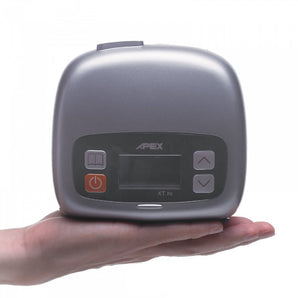
How to View AHI on APEX XT Auto

To see your AHI on the APEX XT Auto CPAP, first make sure the machine is in standby mode. Then press the UP and DOWN arrow buttons simultaneously to view your AHI from the latest therapy session.
Conclusion
Those are our tips for finding your AHI on some top-rated 2023 CPAP machines. If you have questions about sleep apnea therapy or CPAP machines, feel free to connect with our team of respiratory therapists and sleep technologists.
We're happy to provide machine and mask recommendations over email, phone and online chat.
Or, read our review of top-rated 2023 CPAP machines and watch our best 2023 CPAP machines video showcasing tried-and-true models as well as brand new 2023 releases. Whether you're looking for an auto CPAP, travel CPAP, auto BiPAP or a backup machine on a budget, we've got a recommendation for you.